
Variables
Applications often need to talk to each other’s services. An ingestion app fills a vector database, and a chat app has to read the same one. Shared variables let one application export some of its service credentials and let other applications import them, without anyone copying secrets by hand.
Why credentials can’t just be copied
Every application gets its own set of services: PostgreSQL, Redis, S3, Milvus and MongoDB. Their credentials are regenerated every time the application logs in to its cluster. If you pasted one app’s database password into another, the copy would go stale at the next launch.
Shared variables solve this by sharing a pointer instead of a value. The producing application declares which of its credentials it exports. Trustant fetches the current value again whenever it is needed, and hands it to the applications that import it.
The examples below use two applications: truingest, which exports its Milvus
and Redis credentials, and truchat, which imports them.
Every variable needs a value
Before anything else, here is what Trustant guarantees: an application never starts with a variable unset. If a variable has no value when you launch the app, Trustant asks you for one first.
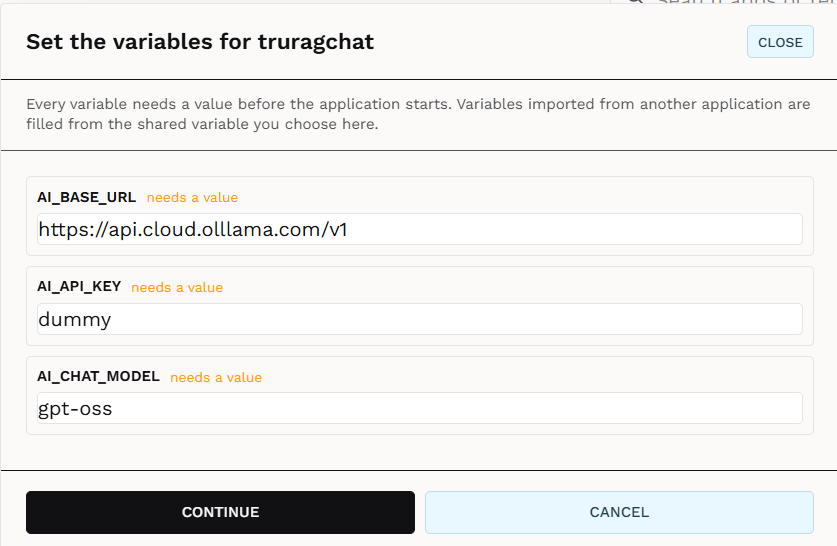
For an application that doesn’t use shared variables, the popup is a list of text fields. Fill them in and press CONTINUE, and the launch goes on. Shared variables add a third option to typing a value yourself: picking one that another application exports.
The Share dialog
Open the dialog with the Share button on the app list, right after Env. It has two tabs:
- EXPORT: what this application publishes to others.
- IMPORT: what this application takes from others.
Each tab saves on its own, so saving one tab never changes the other.
Exporting
Open Share on the producing application (truingest) and select
EXPORT.
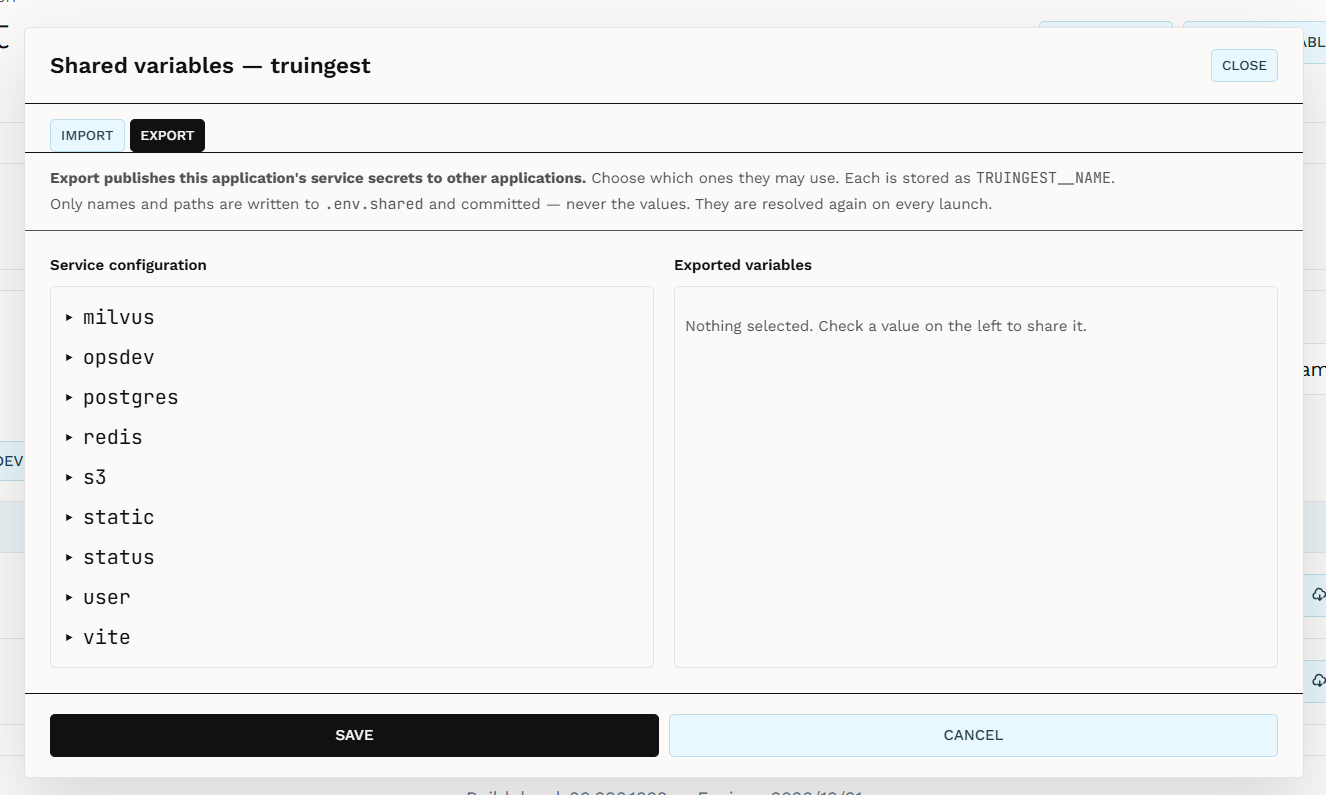
The left column, Service configuration, shows the services this application
has, as a tree: milvus, postgres, redis, s3 and so on. The right column,
Exported variables, starts empty.
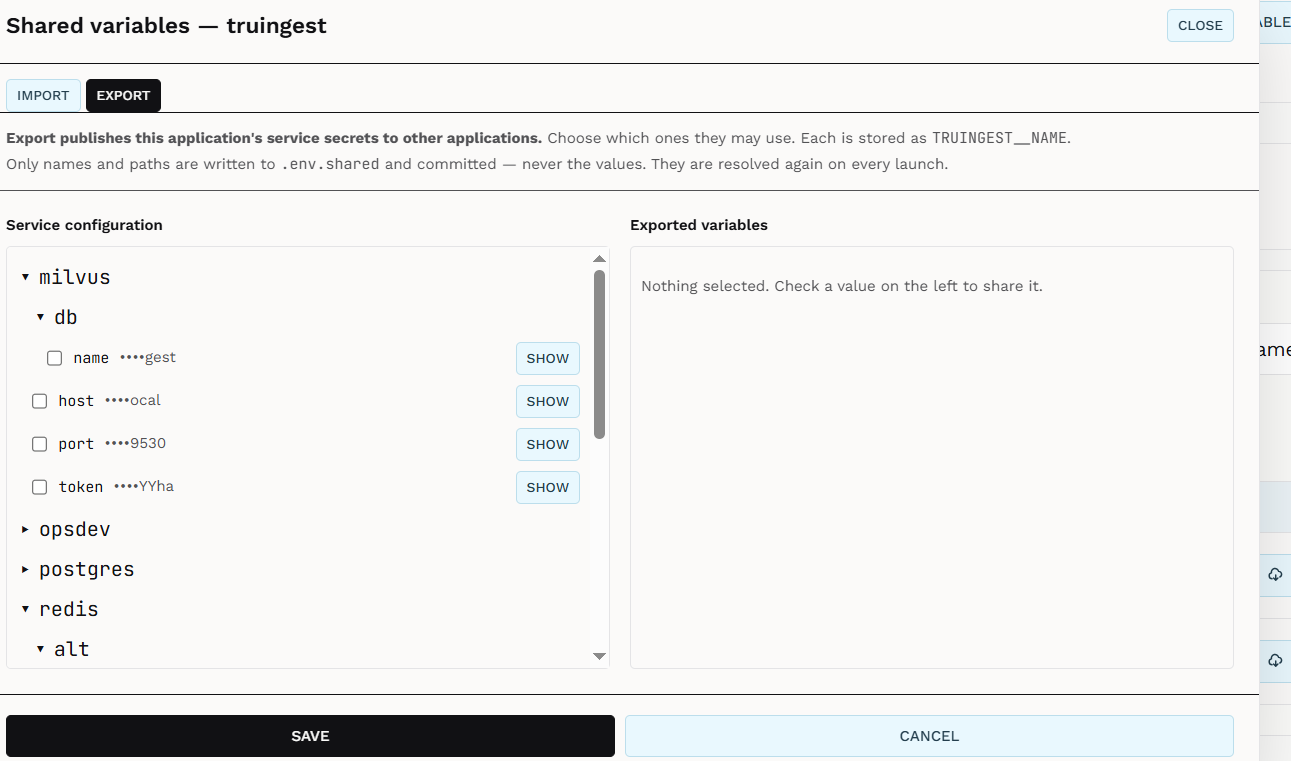
Expand a service to see its settings. You can only tick individual values (a host, a port, a token), not whole groups. Values are masked; press SHOW next to a value to reveal it.
Each value you tick appears on the right. The setting it comes from is on top
(milvus.host), and the variable name it will be shared under is below it
(TRUINGEST__MILVUS_HOST). You can edit the name.
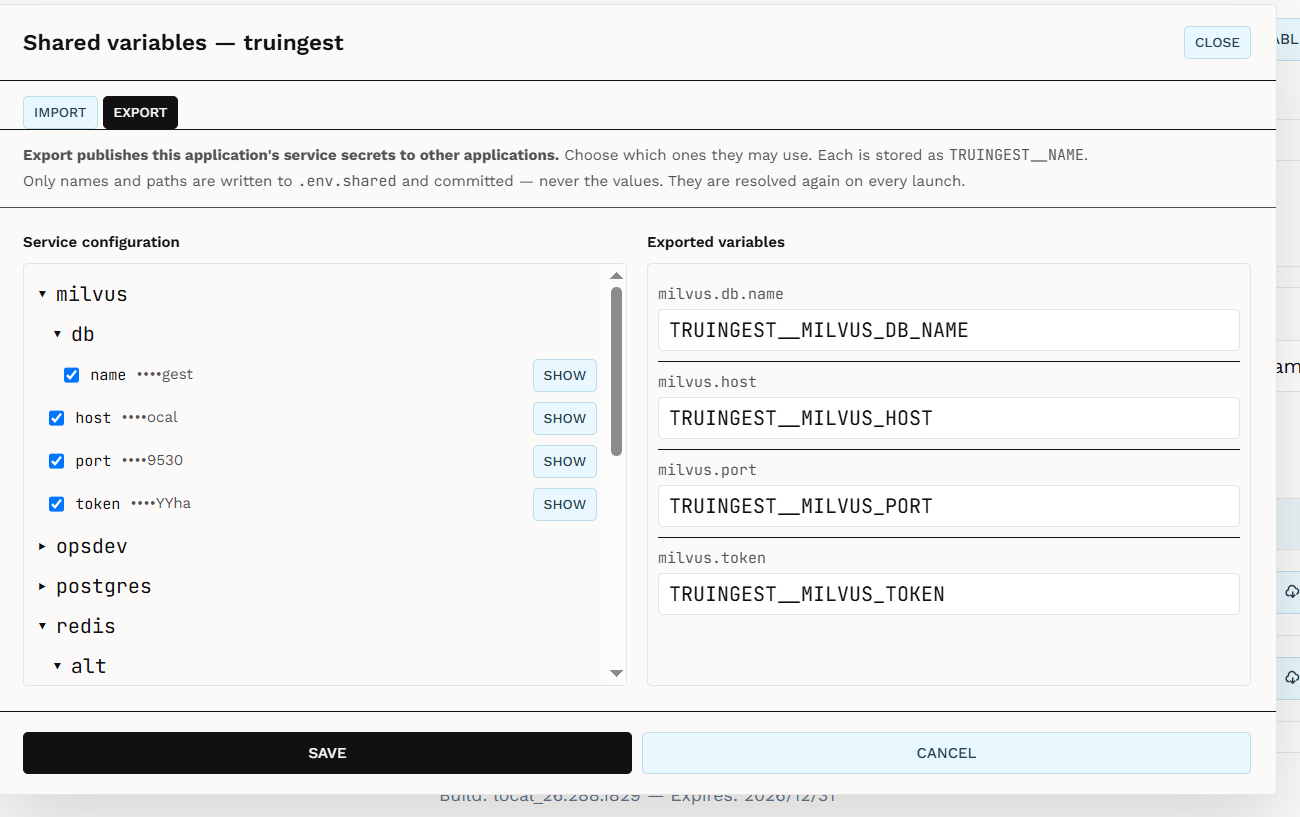
Tick as many values as you need, across several services.
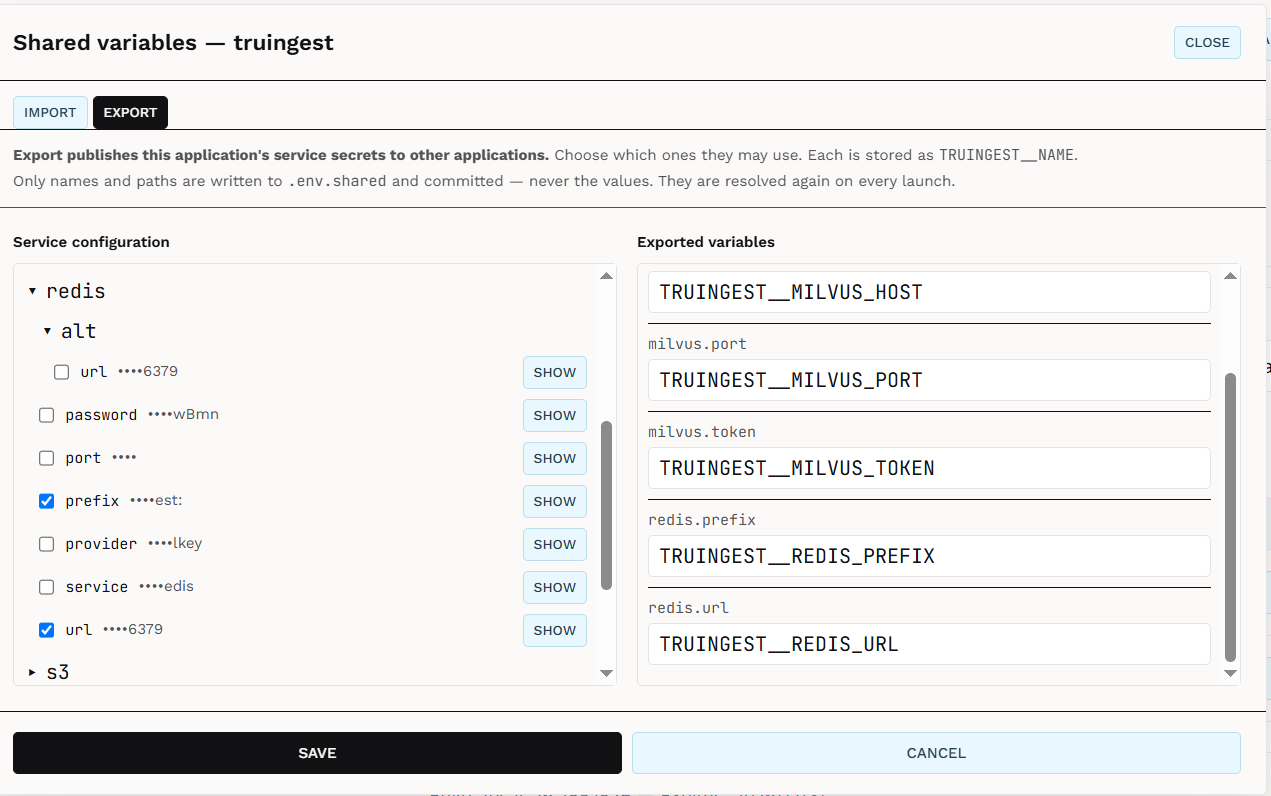
Names must start with the application name and a double underscore:
TRUINGEST__ here. Trustant won’t save anything if even one name breaks this
rule. The prefix stops two applications that both export, say, a Redis URL from
overwriting each other, and it tells you at a glance who produced each variable.
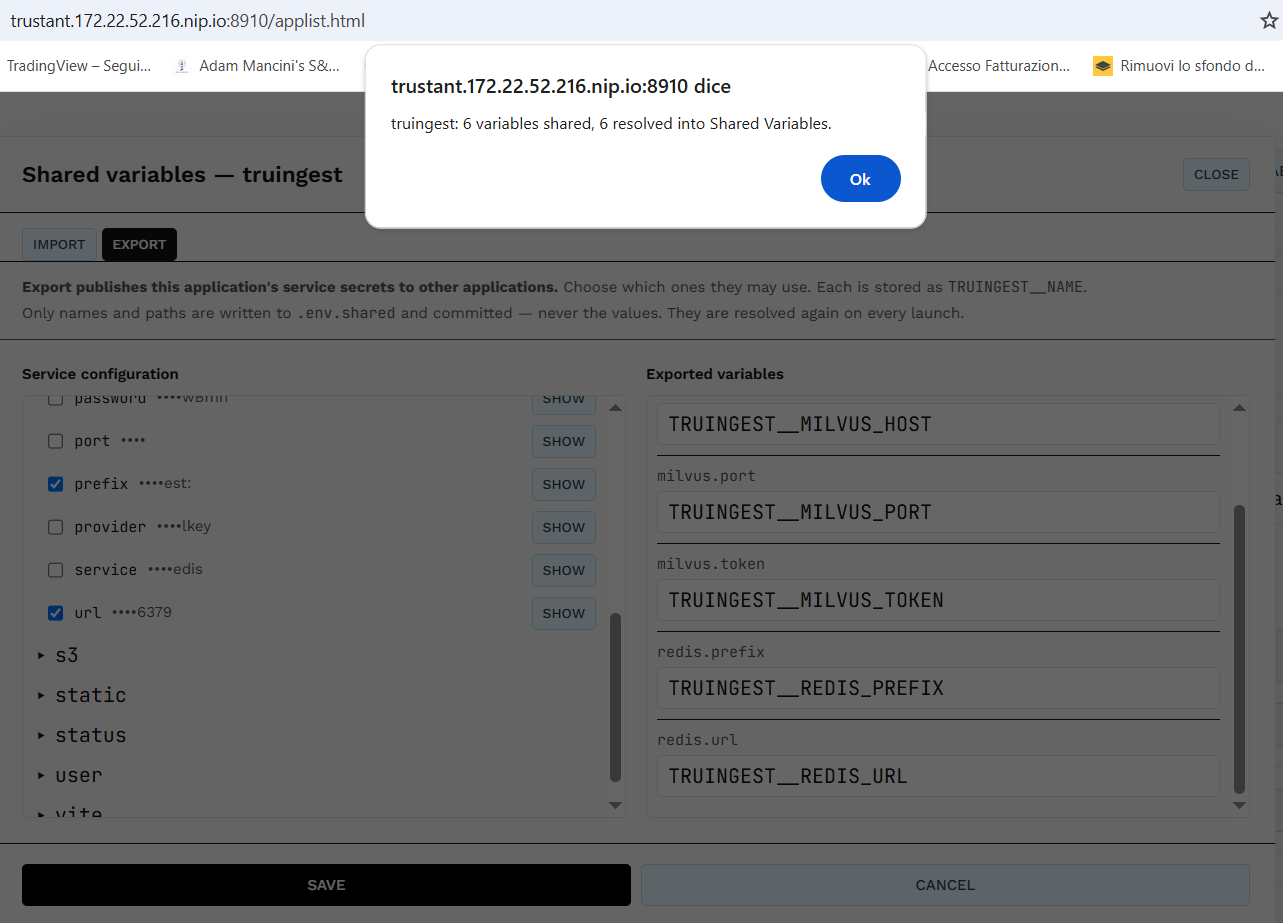
Press SAVE. Trustant reports how many variables were shared and how many it could resolve to a value.
What gets committed
Saving writes a .env.shared file at the root of the application’s repository
and commits it. The file contains only names and pointers, never the values:
<app>__MILVUS_HOST=<.milvus.host>
<app>__REDIS_URL=<.redis.url>
<app> is written literally and is replaced with the application name when the
file is read. That way the file keeps working if the repository is renamed,
forked or installed under a different name.
Because the export travels with the repository, installing the application on another machine exports the same variables there. Trustant fetches the values again when the application is installed, when you save the dialog, and before every launch, so importers always get current credentials.
Importing
Now open Share on the consuming application (truchat) and select
IMPORT.
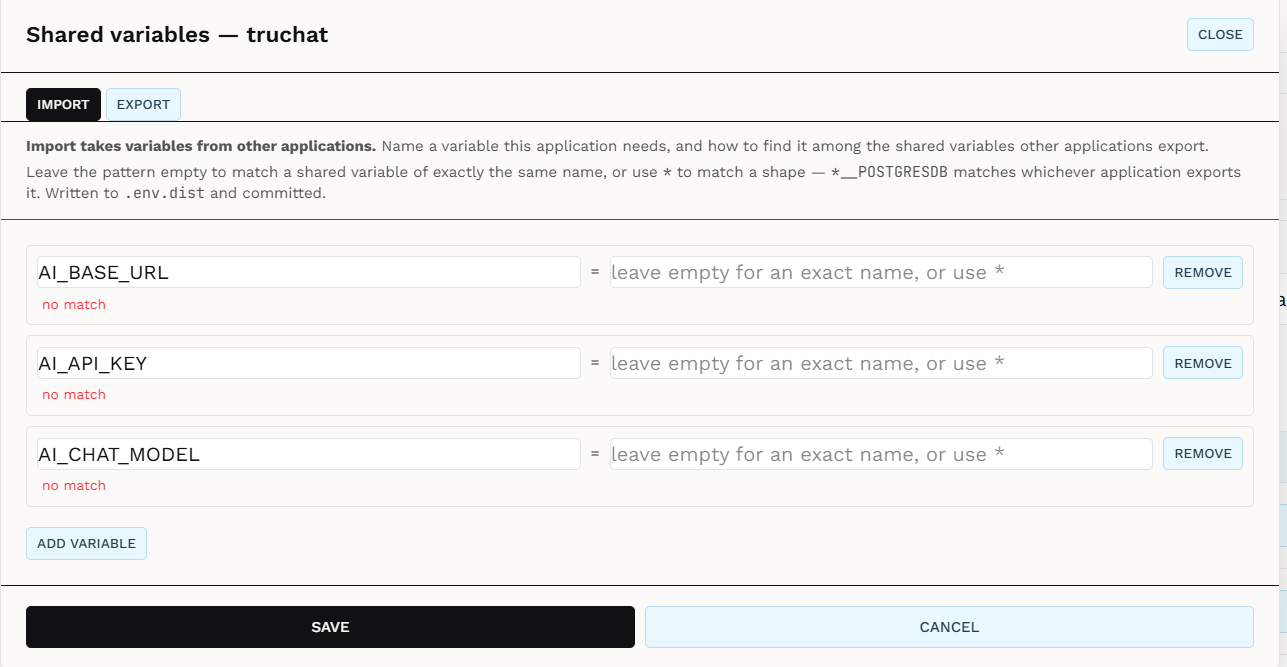
Each row has a variable name (what this application calls it) and a pattern that says which shared variable feeds it:
- Pattern left empty: the shared variable with exactly the same name.
- Another name, such as
TRUINGEST__MILVUS_HOST: that shared variable, under this application’s own name. - A pattern with
*, such as*__MILVUS_HOST: any shared variable with that shape, whichever application exports it.*matches any run of characters.
Under each row, Trustant shows how many shared variables currently match, or no match. Use ADD VARIABLE to add a row and REMOVE to drop one.
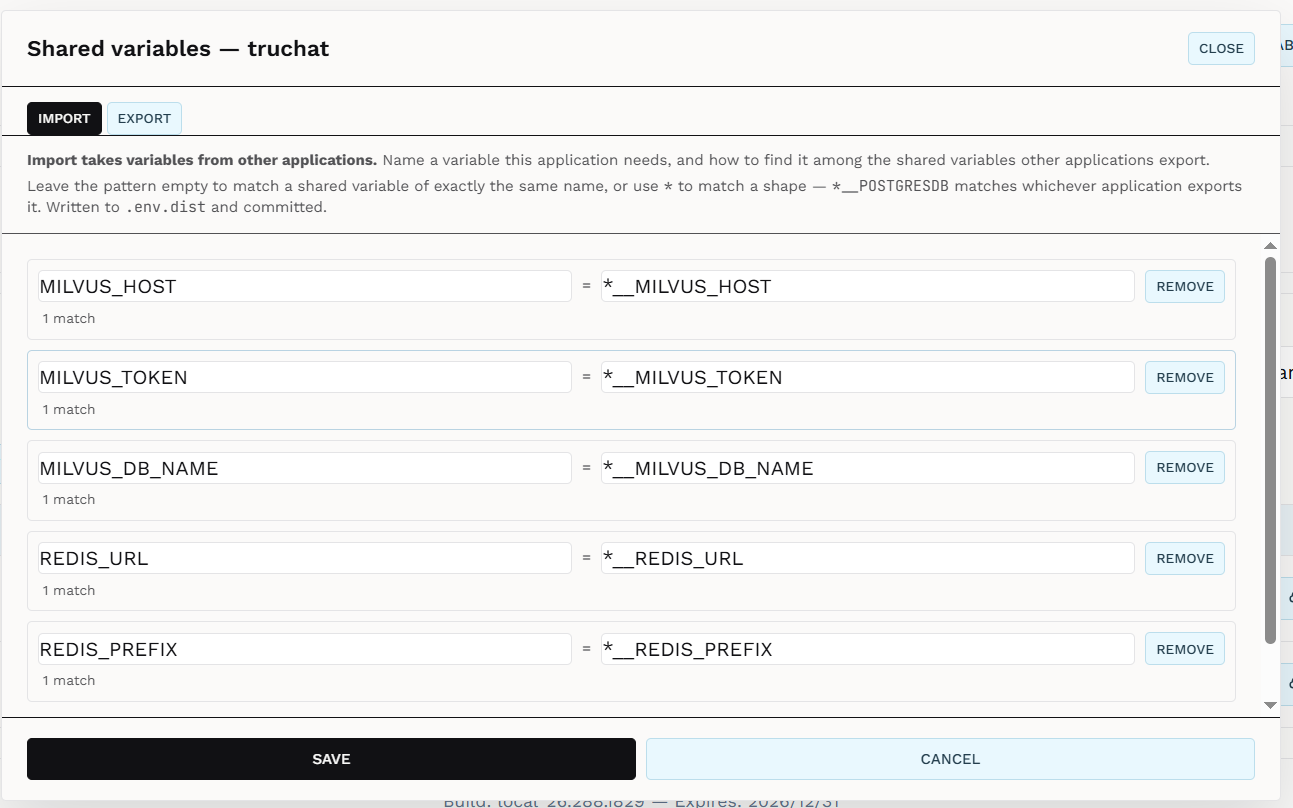
Wildcards let an application keep its own variable names, and let you choose the producer on each installation instead of fixing it in the code.
Saving writes the rows to .env.dist and commits it:
MILVUS_HOST=*__MILVUS_HOST
REDIS_URL=*__REDIS_URL
DATABASE_PASSWORD=
A variable is either imported here or given a value in the Env editor, never both. Trustant refuses a save that would put the same name in both places.
Choosing the source at launch
The first time you launch an application with imports, the launch popup lists every variable, so you see the whole picture:
- a variable that already has a value shows it, masked;
- a wildcard import shows a pull-down of the matching shared variables;
- an import that matches nothing shows a text field, so you can still launch the app when its producer isn’t installed on this machine.
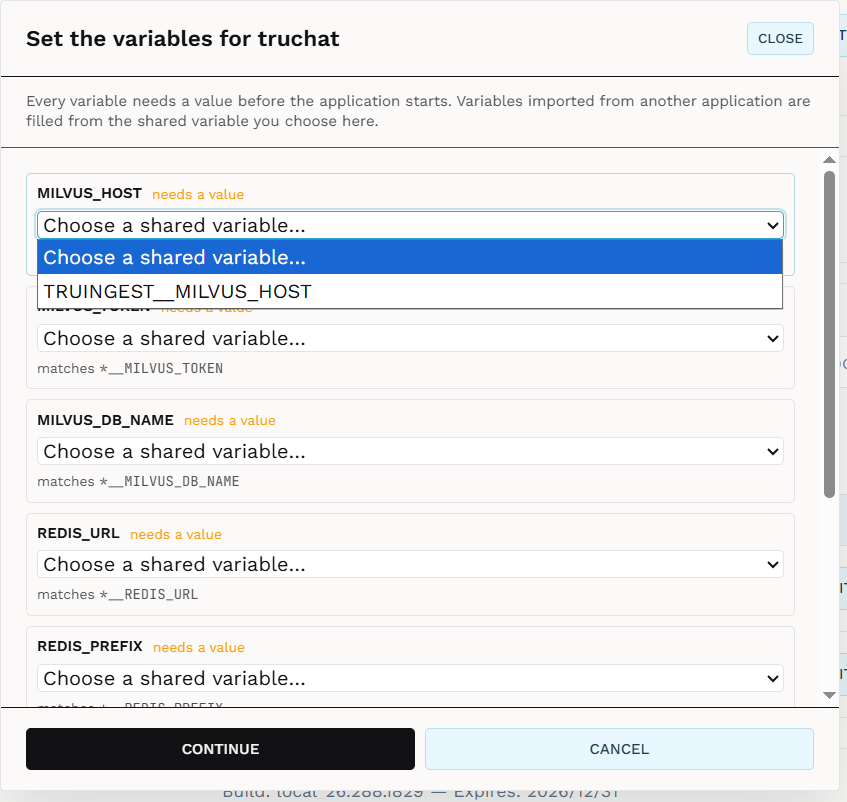
When exactly one shared variable matches, it is already selected and you only have to confirm. Press CONTINUE and the launch resumes.
Trustant remembers your choices, so the popup doesn’t come back on later
launches. A remembered choice follows its producer: when truingest’s
credentials change, truchat gets the new ones automatically. The popup comes
back only if the variable you chose disappears, for example because you deleted
the producing application. In that case Trustant asks you again instead of
quietly switching to another source.
To change a choice later, reopen the IMPORT tab, or use the pull-down shown for imported variables in the Env editor. A value you type by hand always wins over a shared one.
Shared Variables on the Configure page
Everything exported from every application is collected in the Shared Variables card on the Configure page. The card holds the values you typed there yourself alongside the exported ones.
An environment selector switches between Development and each production host you have published to. Exported values are read-only and masked, and each is labelled with the application that shares it.
You can remove an exported entry here. It comes back the next time its producer is launched, though, because the producer still exports it. To stop sharing a value for good, untick it in the producer’s EXPORT tab. Deleting an application removes everything it shared.
Publishing
Service credentials on one cluster have nothing to do with those on another. Trustant therefore keeps production values separately for each host, and fills them in when the producing application is published to that host.
When you publish an application that imports variables, Trustant resolves them against the target host’s values only. It follows the choices you made in development. If any import has no value there, the publish stops before anything is deployed, and the import popup opens for that host. You have three options:
- choose a shared variable that is available on that host;
- publish the producing application to that host first;
- type the value by hand.
Development launches are more forgiving: a missing value there costs you a broken dev server, while a missing value in production would deploy an app pointed at nothing.